
How to Schedule Global Meetings Across Time Zones Without Waking Anyone Up at 3 AM
We’ve all been there. You send out a calendar invite for an urgent team sync, feeling confident that 2:00 PM works great. Then, five minutes before the call starts, your developer in Tokyo messages you: "Hey, it's 4:00 AM here… is this call necessary?"
Managing a distributed team, coordinating with international clients, or planning a quick catching-up call with family living abroad shouldn't feel like a high-level math exam. Between Daylight Saving Time shifts, 12-hour gaps, and messy manual calculations, finding a single hour when everyone is awake and working can feel almost impossible.
That’s exactly why we built the Global Meeting Planner—a free, visual tool that takes the guesswork out of international scheduling.
In this simple step-by-step guide, we’ll show you how to find your team's "golden hour" in seconds, avoid sneaky timezone traps, and organize seamless meetings across continents.
Why Is Time Zone Scheduling So Stressful?
If you rely purely on standard calendar apps to coordinate calls, you’ve likely run into these common pain points:
- The Daylight Saving Trap: A time slot that worked perfectly in October suddenly breaks in November because one country turned its clocks back while another didn't.
- Mental Math Exhaustion: Converting Eastern Time to UTC, then to CET, and finally to JST in your head is a fast track to mistakes.
- Accidental 3 AM Calls: It’s easy to focus on your own schedule and forget that a 5 PM call for you is bedtime or midnight for someone else.
Instead of guessing, using a visual matrix gives you a top-down view of who is working, who is relaxing, and who is fast asleep.
Introducing the Global Meeting Planner: How It Works
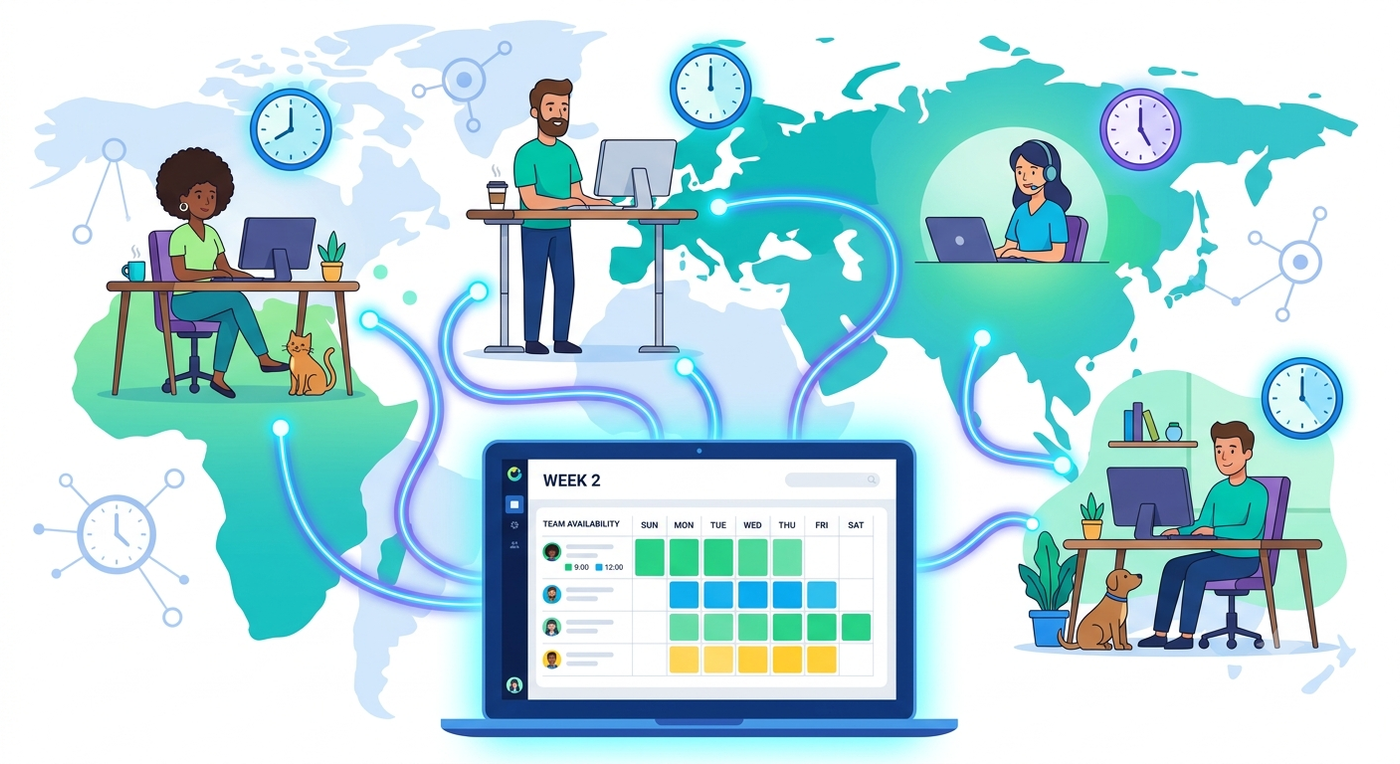
Our Global Meeting Planner acts like a master timeline for your entire team. Rather than forcing you to look up cities one by one, it lays out every location side-by-side using an interactive visual color grid.
Here is what the colors tell you at a glance:
- 🟢 Emerald Green (Working Hours): The sweet spot! Everyone is online and in standard working hours (9 AM – 5 PM).
- 🔵 Indigo (Waking Hours): Early morning or late evening. People are awake, but outside standard working hours.
- 🔴 Crimson Red (Sleep Hours): Do not disturb! It’s late at night or early morning, and your team is likely asleep.
Step-by-Step Guide: How to Schedule a Meeting in 4 Easy Steps
Planning your next international call takes less than a minute. Follow these simple steps:
Step 1: Select Your Proposed Date
Head over to the Global Meeting Planner and choose the exact day you want to meet.
💡 Pro Tip: Always pick the actual future date of the meeting instead of today's date! This allows our engine to auto-calculate subtle Daylight Saving Time shifts that might happen between now and then.
Step 2: Set Your Local Starting Time
Use the precision slider to select your preferred local starting time and how long the call will last.
Step 3: Add Your Target Cities
Type and select all the locations where your participants live. You can add as many cities as you want.
As you add cities, the grid below updates instantly, displaying the local time for every single person on your team. If you want to double-check exact live offsets beforehand, you can also consult our World Clock to see current time standards globally.
Step 4: Export straight to Google Calendar
Once you find a time slot where the columns align in green or indigo, click "Schedule Meeting". The tool will automatically open a pre-filled Google Calendar invite converted into UTC, saving you from typing in details manually.
3 Smart Rules for Managing Global Teams
Even with the best tools, remote communication works best when accompanied by good habits:
1. Rotate the "Uncomfortable" Time Slots
If your team is split between San Francisco, London, and Tokyo, finding a perfect green slot for everyone is mathematically impossible. Don't make the same team member join late-night calls every week. Use the planner to alternate who takes the early morning or evening call each meeting.
2. Check for Local Holidays
Before locking in a time, keep local holidays in mind. A Monday 10 AM slot might look green on paper, but if your European colleague has a national holiday, you'll be left waiting. Track upcoming global events easily with our Holiday Countdown tool.
3. Account for DST Shifts in Advance
Clock updates happen on different weekends in North America, Europe, and Australia. If you manage recurring weekly syncs, check the dates on our DST Tracker to stay ahead of upcoming time shifts.
Ready to Schedule Your Next Meeting Stress-Free?
Stop juggling time offsets, double-checking world clocks, and apologizing for inconvenient invites.
Try the free Global Meeting Planner today—no sign-up, no downloads, just instant clarity for distributed teams.
Need more precision time management tools? Explore the rest of our free suite:
- World Clock: Keep track of local times in multiple locations simultaneously.
- Shared Alarm: Synchronize multi-person alerts across different locations.
- Productivity Timers: Stay focused and manage sprint tasks efficiently.